
Finding your way
GoodWorkshop has only a few screens: the library, the day editor and your settings. This page shows what is where on them.
Header
Section titled “Header”The header is the same on every page:
- Left: your workspace’s logo or name (without custom branding: “GoodWorkshop”). Clicking it takes you to the library.
- Discover – only in GoodWorkshop Cloud: curated workshop designs and methods that you can adopt into your workspace. See Discover methods.
- Right: a circle with your initials and your name. It opens the profile menu.
Below the header, notices appear when needed, for example about planned maintenance or – in the cloud – the days left in your trial.
The profile menu
Section titled “The profile menu”| Entry | What you’ll find there |
|---|---|
| Profile & settings | First and last name, language, delete account |
| Security | Your passkeys |
| AI Connection | Tokens and instructions for connecting an AI assistant |
| Help | These help pages, in a new tab |
| Support | Cloud only: a form that reaches us directly |
| Administration | Admins only: Members, Branding, Mail delivery and, in the cloud, Billing |
| Sign out | Ends your session on this device |
The library
Section titled “The library”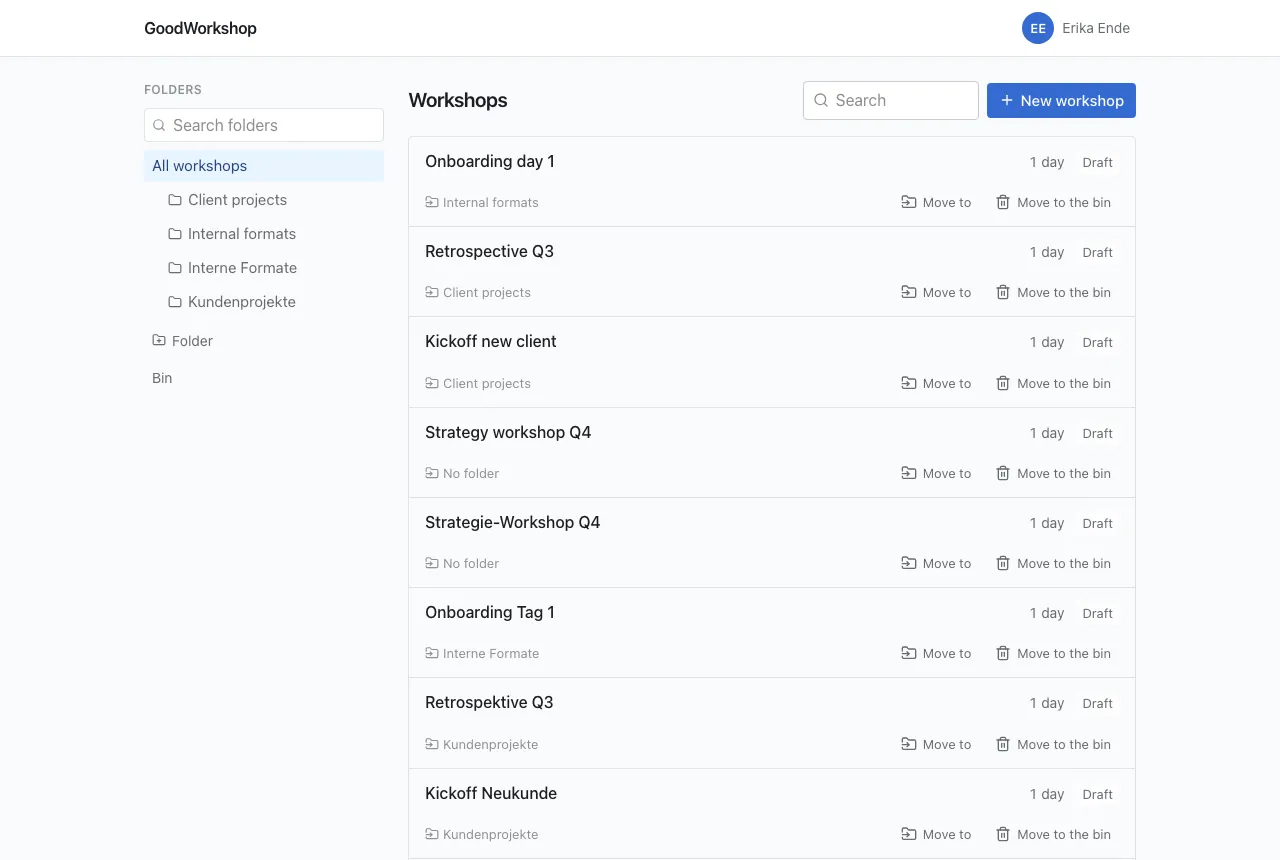
On the left is the Folders column: a search field for folders, All workshops, below it your folder tree, the Folder button for creating one, and the Bin. As soon as there are tags, they appear below that under Tags.
On the right are the Workshops, with the search field and the New workshop button. Each row shows the title, tags, number of days and status, and below that the folder and the actions Export, Move to and Move to the bin. More under Folders and workshops.
The day editor
Section titled “The day editor”Clicking a workshop opens its first day. From top to bottom:
- ← Library, the workshop title and below it its tags (+ tag).
- On the right, the output options: Access, With facilitation notes, Whole workshop, Markdown and Print.
- The day tabs and Workshop day for adding one. Below them the name, date and start of the open day, the arrows for reordering and Delete workshop day.
- The day header: start and end, content, breaks and number of blocks, then Add a note about the day and the color legend of the block types.
- The agenda in three columns: Time, Title and description and Additional info.
- Below the agenda Add a block, Add section and Add breakout, then the day’s End.
- At the very bottom, the parking area: Parked, with the blocks that don’t count toward the time.
If someone else is editing the same day, a bar above the agenda shows who is there right now. See Live editing together.
Footer
Section titled “Footer”At the very bottom you’ll find “GoodWorkshop · powered by roleALPHA”, the license and the version number. Include the version number when you report a problem – it tells us which release you’re looking at.
On a phone
Section titled “On a phone”GoodWorkshop is built for use in the room and works fully on a phone.
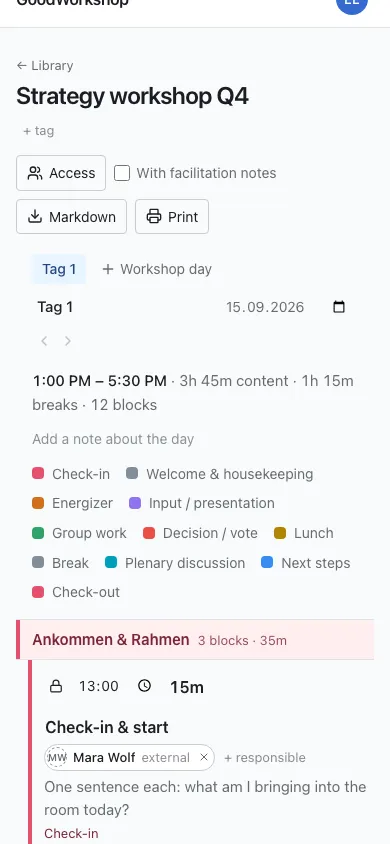
- Library: The folder tree is collapsed. A button above the list shows which folder you’re in (or All workshops) and expands the tree.
- Moving: Dragging in the library only works from tablet width up. On a phone, tap Move to and pick the folder from the list.
- Agenda: Every block becomes a card. The buttons that only appear on hover on a computer are always visible here.
- Dragging: Press and hold a block’s handle briefly before you drag. A normal swipe scrolls the page.
- Bad Wi-Fi: If the connection drops, the agenda tells you, keeps accepting your changes and sends them as soon as the connection is back.