
Folders and workshops
The library is where you land every time you sign in. Folders are on the left, workshops on the right. Both are optional: you can also work entirely without folders.
What you see in the library
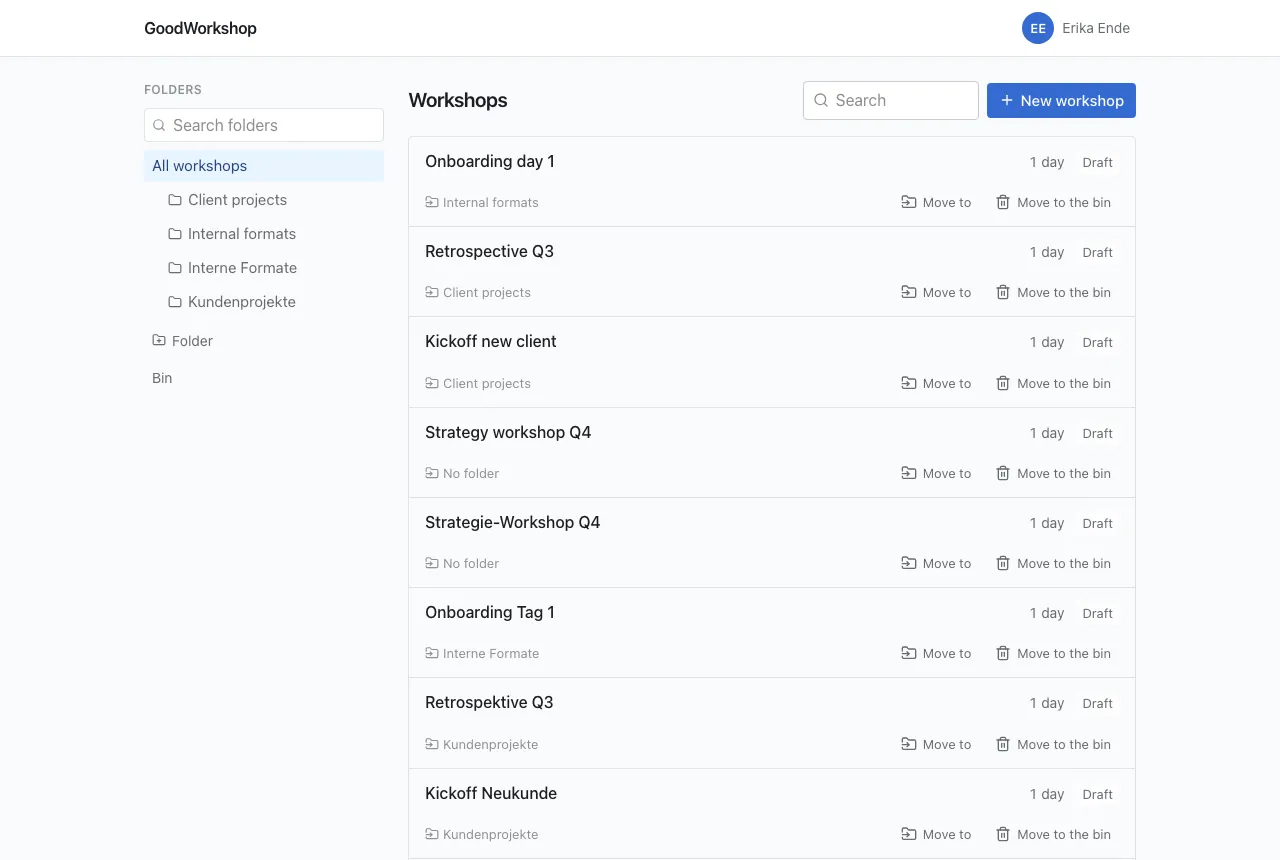
Section titled “What you see in the library”You see the workshops that belong to you, the ones someone has shared with you – directly or through a folder – and, as an admin, all workshops in the workspace. The list is sorted by the last change and loads more entries as you scroll; there is also Load more at the end for that.
Each row shows the title, tags, number of days and status (for example Draft). Below that are the folder – or No folder – and the actions Export, Move to and Move to the bin. On narrow screens the actions are icons only. If you may only read a workshop, it shows Read only and offers only the export.
Create a workshop
Section titled “Create a workshop”- On the left, choose the folder the workshop should go in, or All workshops for none.
- Click New workshop and enter the title. Above the field it says where it will be filed.
- Confirm with Create or the Enter key.
The workshop opens right away, with its first day. It belongs to you. You set the workshop’s title here; in the app itself it can’t be renamed afterwards, but it can through the AI assistant.
Create a folder
Section titled “Create a folder”- Click Folder below the folder tree.
- If a folder is currently selected, use Create in to choose whether the new folder becomes a subfolder of it or goes on the Top level.
- Enter the name and press Enter.
Folders are sorted alphabetically. There can’t be two folders with the same name in the same folder – not even if they differ only in upper and lower case. You expand and collapse folders with subfolders using the arrow in front of the name. With many folders, the Search folders field helps; it also searches collapsed branches.
Move workshops
Section titled “Move workshops”You can change a workshop’s folder if you may edit it.
- Dragging: Grab the Move to button in the row and drag it onto a folder on the left. If you drag it onto All workshops, it no longer sits in any folder afterwards.
- Picking: Click Move to and pick the folder from the list, or Top level for none.
Dragging works from tablet width up. On a phone, with the keyboard and with a screen reader, you use the list.
Manage folders
Section titled “Manage folders”Each folder has a menu on the right (⋮). For everyone it contains Access: who sees the folder and everything in it. How to share a folder is described under Share with people.
Folders belong to the workspace, not to a person. That’s why only admins can change them:
| Action | How it works |
|---|---|
| Rename | Menu → Rename, enter the new name, press Enter |
| Move | Drag the folder by the icon next to the menu onto another one, or click it and choose under Move to |
| Remove | Menu → Remove the folder — its contents move up one level, then confirm Remove folder |
No workshop is lost when you remove a folder: workshops and subfolders move up one level. The folder’s sharing, however, is lost. GoodWorkshop refuses to move a folder into itself or into one of its subfolders.
Search
Section titled “Search”The Search field above the list searches workshop titles, within the folder or tag you have currently selected. The folder, tag and search term are part of the page address – so a filtered library is a link you can save or pass on.