
Connect an assistant
There are two ways to connect an AI assistant to GoodWorkshop:
| Way | For whom | What you need |
|---|---|---|
| OAuth (no token) | Claude on the web, on desktop and in the app, ChatGPT, Claude Code, Gemini CLI, Mistral Le Chat, Cursor, VS Code and many more | just the server URL; you sign in in the browser and give consent |
| Personal token | Clients that send a fixed header: Claude Code, Claude Desktop, Gemini CLI, Codex, Langdock | a token from AI Connection |
If your client supports OAuth, use OAuth. You’ll find everything about the connection in GoodWorkshop in the profile menu at the top right under AI Connection.
The server URL
Section titled “The server URL”https://<your-installation>/api/mcpIn GoodWorkshop Cloud, that is:
https://goodworkshop.org/api/mcpOn the AI Connection page, your installation’s address is shown under Server URL, with a button to copy it.
Connect with OAuth
Section titled “Connect with OAuth”Menu names in Claude and ChatGPT may differ slightly by language and version.
Applies to Claude on the web, on desktop and in the app.
- In Claude, open Customize → Connectors, click + and choose Add custom connector.
- Give it a name, for example GoodWorkshop, and paste the server URL. Leave Advanced settings empty.
- Click Add, then Connect.
- Sign in to GoodWorkshop in the browser and click Allow access.
On Claude Team and Enterprise only an Owner adds the connector, under Organization settings → Connectors. Everybody else then just clicks Connect. The Free plan allows one custom connector.
- On the web, turn on developer mode under Settings → Apps → Advanced settings. It is available on Plus, Pro, Business, Enterprise and Edu; in a workspace an admin may have to allow it first.
- Under Apps, create a new app: name, server URL, authentication OAuth.
- Save and connect.
- Sign in to GoodWorkshop in the browser and click Allow access.
Add the server in the terminal without a header:
claude mcp add --transport http goodworkshop https://goodworkshop.org/api/mcpThen run /mcp in Claude Code, pick the server and choose Authenticate. The browser opens; sign in and click Allow access.
Add the server in the terminal without a header:
gemini mcp add --transport http goodworkshop https://goodworkshop.org/api/mcpThe browser opens by itself on the first connection. To sign in again later, run /mcp auth goodworkshop.
Mistral Le Chat, Cursor, VS Code and others:
- Enter the server URL.
- Choose OAuth as authentication – clients often detect it themselves.
- Sign in in the browser and give consent.
If a client can only send fixed headers, use a personal token (see below).
If you run GoodWorkshop yourself, replace goodworkshop.org in the commands with your own address.
The consent page
Section titled “The consent page”During sign-in, GoodWorkshop shows the Allow access? page. It says which client is asking, for which account, and under It will be able to: what it may do. Over OAuth, that is:
- Read workshops
- Write workshops
- Read block types
Below that it says: “It acts as you … and can never do more than you can. User administration is excluded.”
You have two options: Allow access or Refuse. Deselecting individual scopes isn’t possible – a client with half its rights would later fail in unexpected places.
End OAuth access
Section titled “End OAuth access”Disconnect the connector in the client. GoodWorkshop itself cannot yet revoke OAuth access.
Connect with a personal token
Section titled “Connect with a personal token”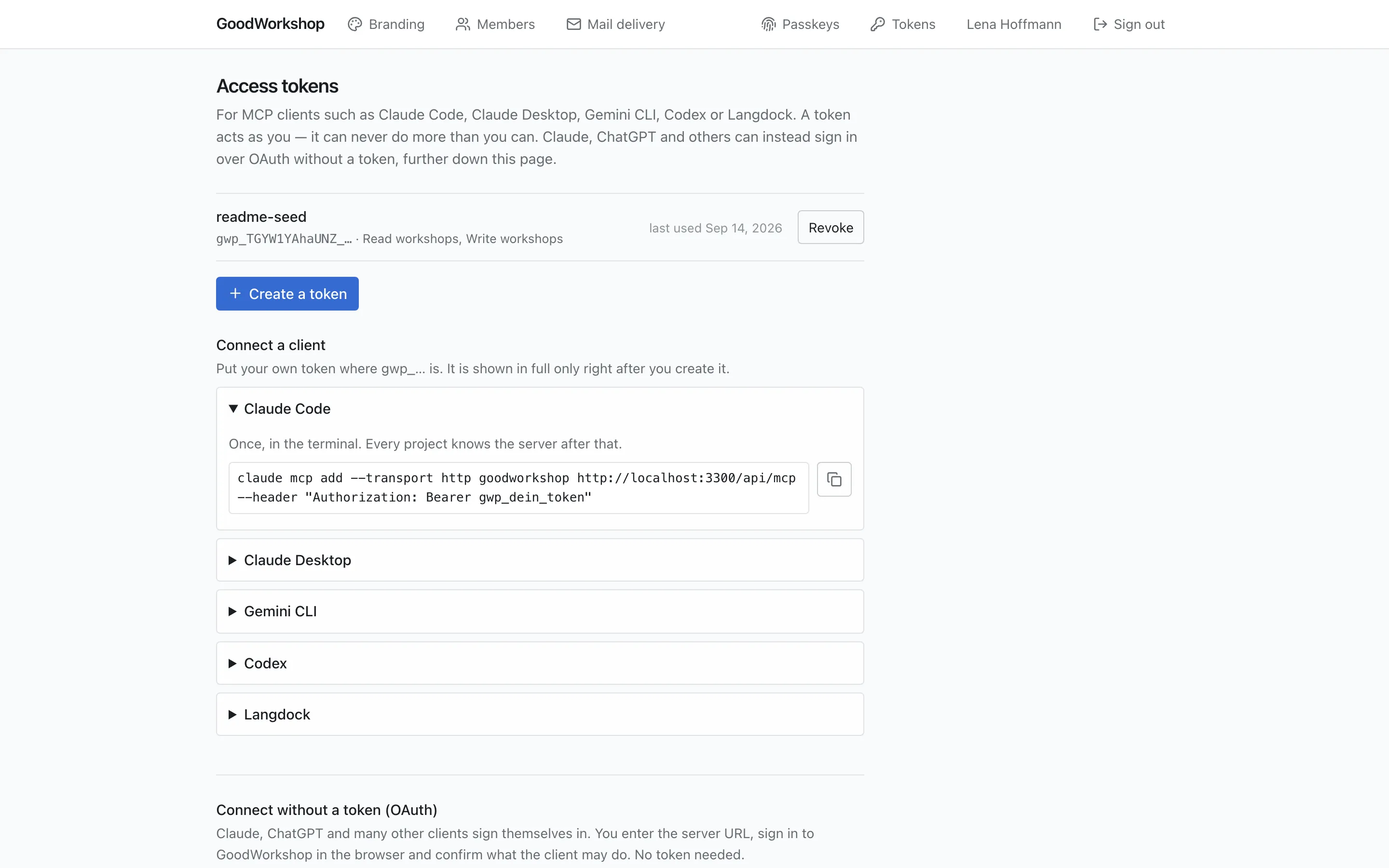
Create a token
Section titled “Create a token”- In the profile menu, open AI Connection.
- Click Create a token.
- Under What is it for?, enter a name, for example “Claude Desktop”.
- Under What may it do?, choose the scopes (see the table below). Read workshops and Read block types are preselected – with them the assistant can read but not change anything. If it should write agendas, check Write workshops.
- Click Create a token.
Later, the instructions show gwp_… in place of the token. Put your own token there.
Token scopes
Section titled “Token scopes”| Scope | What for |
|---|---|
| Read workshops | read the library, days, bin and export; in the cloud also the method collection |
| Write workshops | create, change and delete folders, workshops, days and blocks; adopt methods |
| Read block types | read the block types and their fields – needed so the assistant fills blocks correctly |
| Write block types | selectable, currently not used by any tool |
| Read the tenant | selectable, currently not used by any tool |
If a token lacks a scope, the tool tells the assistant so. Then create a new token with the right scope. User administration is deliberately not on offer.
Set up the client
Section titled “Set up the client”Once, in the terminal. Every project knows the server after that.
claude mcp add --transport http goodworkshop https://goodworkshop.org/api/mcp --header "Authorization: Bearer gwp_…"Add this to the configuration file and restart Claude Desktop. If "mcpServers" is already there, only the inner part is new.
- macOS:
~/Library/Application Support/Claude/claude_desktop_config.json - Windows:
%APPDATA%\Claude\claude_desktop_config.json
{ "mcpServers": { "goodworkshop": { "command": "npx", "args": [ "-y", "mcp-remote", "https://goodworkshop.org/api/mcp", "--header", "Authorization:${GW_TOKEN}" ], "env": { "GW_TOKEN": "Bearer gwp_…" } } }}Copy the spelling exactly: Authorization:${GW_TOKEN} without a space, and the word Bearer in env. With a space, the header gets lost along the way, and every call is refused without an error message.
Once, in the terminal. The entry lands in ~/.gemini/settings.json.
gemini mcp add --transport http --header "Authorization: Bearer gwp_…" goodworkshop https://goodworkshop.org/api/mcpTwo lines in the terminal. Codex keeps the token out of its configuration file; the entry names only the environment variable.
export GW_TOKEN=gwp_…codex mcp add goodworkshop --url https://goodworkshop.org/api/mcp --bearer-token-env-var GW_TOKENTo make it stick, the first line belongs in your shell configuration (~/.zshrc or ~/.bashrc).
- Settings → Integrations → MCP → add a connection.
- Paste the server URL.
- Authentication: API Key, header type: Authorization: Bearer.
- Paste the bare token as the key – without the word “Bearer”, Langdock adds that itself.
- Test connection, pick the tools, save.
Revoke a token
Section titled “Revoke a token”The list on AI Connection shows each token with its name, scopes and when it was last used. Revoke blocks it immediately. You can only create and manage tokens for yourself; even admins don’t see other people’s tokens.